
When your Supervisor is meeting with a potential new employee, he may contact you to assist him in looking up the salary pay table (Schedule ID) for the position for which this new hire will be working.
To do this:
- Log into ERP – Linq
- Click on Modules
- Click on HRS Human Resource/Payroll
- Click on File Maintenance
- Click on Salary Administration
- Click on Schedule Maintenance. You will see the following box:
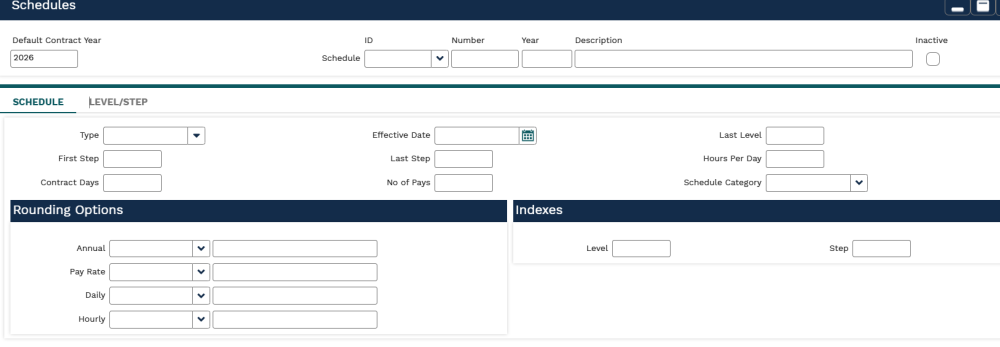
- Click on the Schedule ID drop down and pick the correct schedule and year for the pay table you which to find. As an example, if you wish to locate the pay table for a CST employee, you would search CST and then pick the CST 2026 (or whatever year you need to see).
- Once you have the Schedule ID/Year, then you should see the Schedule populate.
- You will then need to go to the specific Level/Step of this schedule to get the pay table.
- In the example above, if you needed to see the CST 2026 pay table for a person who has their MA, then you would go to the Level/Step tab.
- Under the Description and over to the right you will see left and right arrows.
- Click on the right arrow until you are on the Description MA page. See example below:
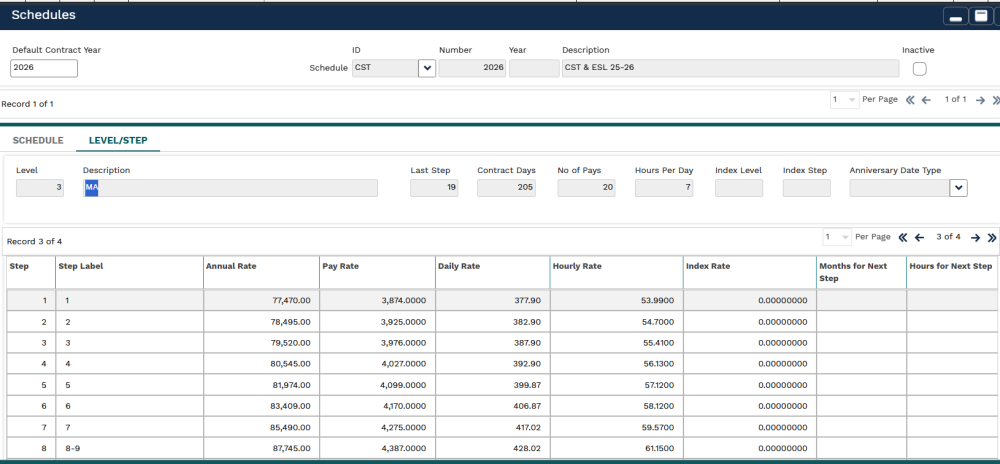
You may have to scroll to see the amount for the Step for which this new employee would be placed. You can now give this figure to the supervisor.
Post your comment on this topic.